Plugins Directory » Scarlet Theme by Redmineflux
|
|
Author: | Zehntech Technologies Inc |
|---|---|---|
| Website: | https://www.redmineflux.com/product/redmine-themes/scarlet-theme/ | |
| Code repository: | - | |
| Registered on: | 2026-11-26 (1 day ago) | |
| Current version: | 7.0.0 | |
| Compatible with: | Redmine 7.1.x, 7.0.x, 6.1.x, 6.0.x, 5.1.x, 5.0.x | |
| User ratings: |
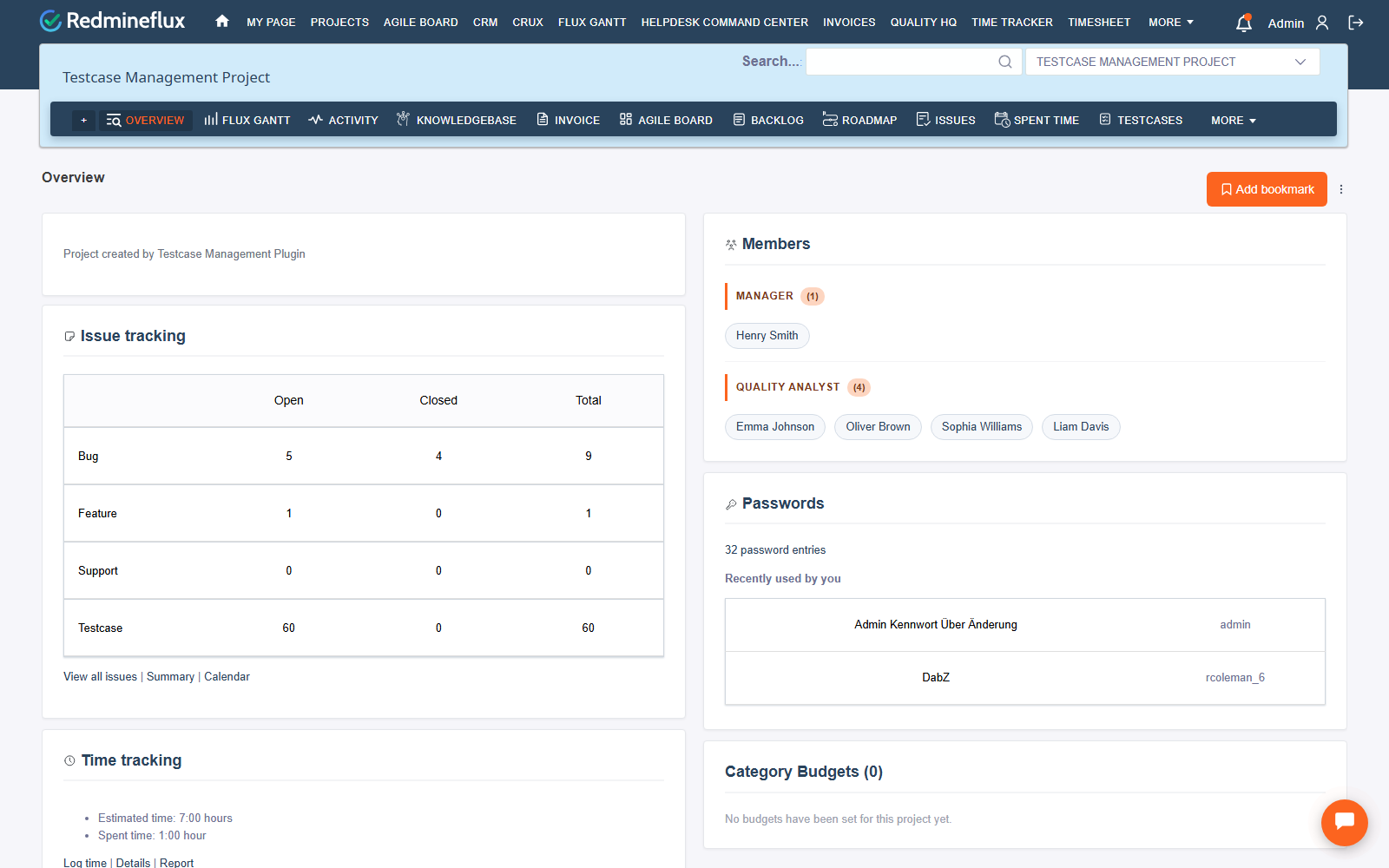
The Redmineflux Scarlet Theme gives Redmine a modern navy and orange look. It is a "theme as a plugin": it installs a companion theme named Redmineflux scarlet and adds its styles and scripts to every page while that theme is selected. No Redmine core files are changed, and the theme needs no database tables.
Key Features of Redmineflux Scarlet Theme
- Complete styling: a full Scarlet style for Redmine, with the Poppins font and a Scarlet favicon included.
- Top menu logo: the Redmineflux logo by default, or your own logo.
- More menu: top-menu and project-menu tabs that do not fit on one line move into a More drop-down.
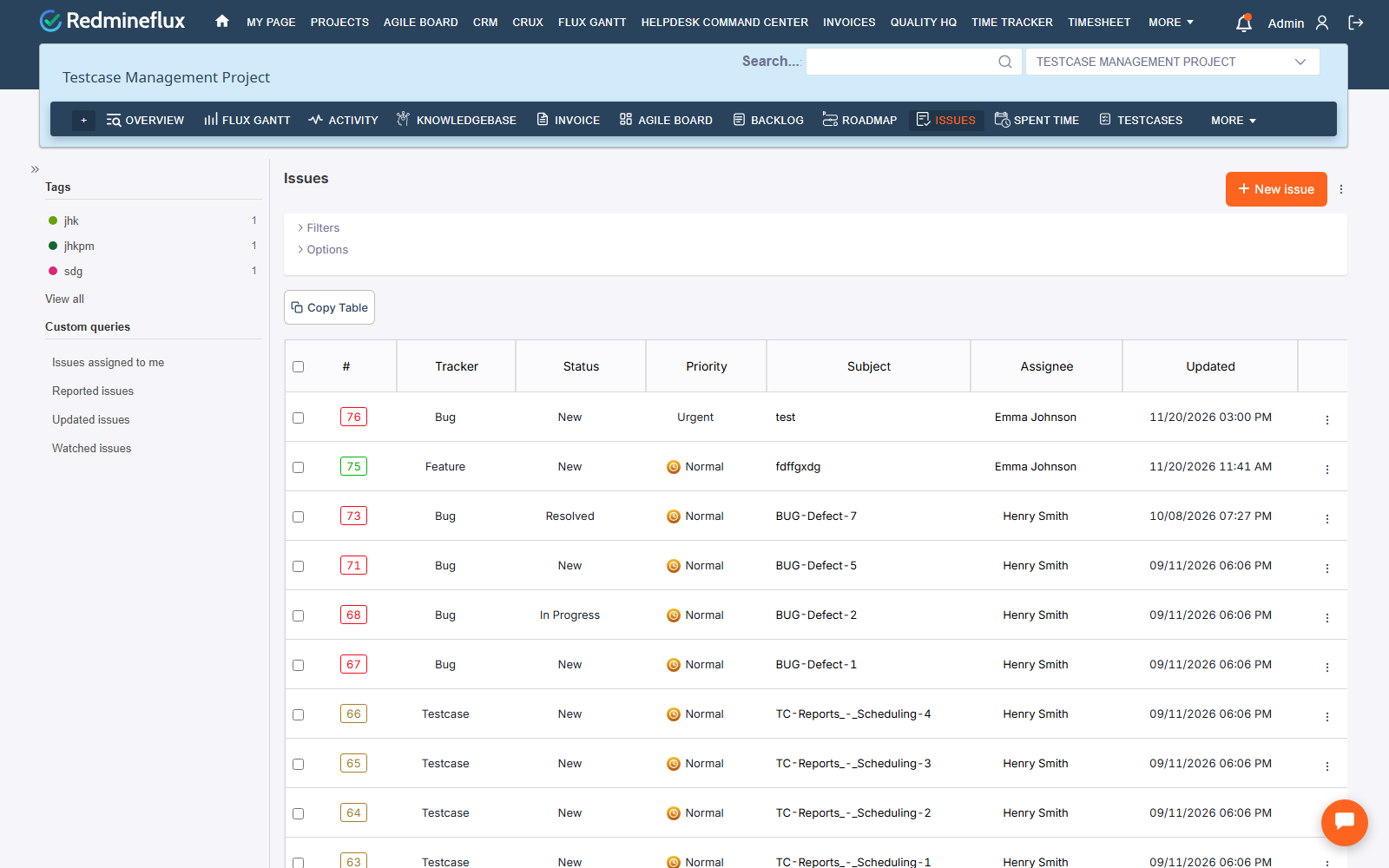
- Collapsed filters: filters on issue lists and other query lists start collapsed.
- Project Overview page: subproject cards with search, status filter, sort, card or list view and paging.
- Redesigned pages: a welcome header on the home page, collapsible date sections on the Activity page, My page and user profile pages, a card layout for each version on the Roadmap, and new layouts for the administration and issue pages.
- Copy Table: on the issue list and the Spent time list, resize columns and copy the visible table as rich HTML (for Excel, Google Sheets, Word or Outlook) and as tab-separated text.
- Roadmap copy tools: copy a version card as formatted text or as an image (PNG).
- Version page: a Copy Information button that copies the version name, status, overview and related issues.
- Spent time report: the header row and column headers stay visible while you scroll.
- Tracker colours: each tracker gets a border colour on its issue numbers in lists and on issue links. Default colours are set for common tracker names, and you can set any colour.
- Priority icons: show an icon before each priority name in the issues list. Default icons are included, and you can upload your own or pick one from the icon picker.
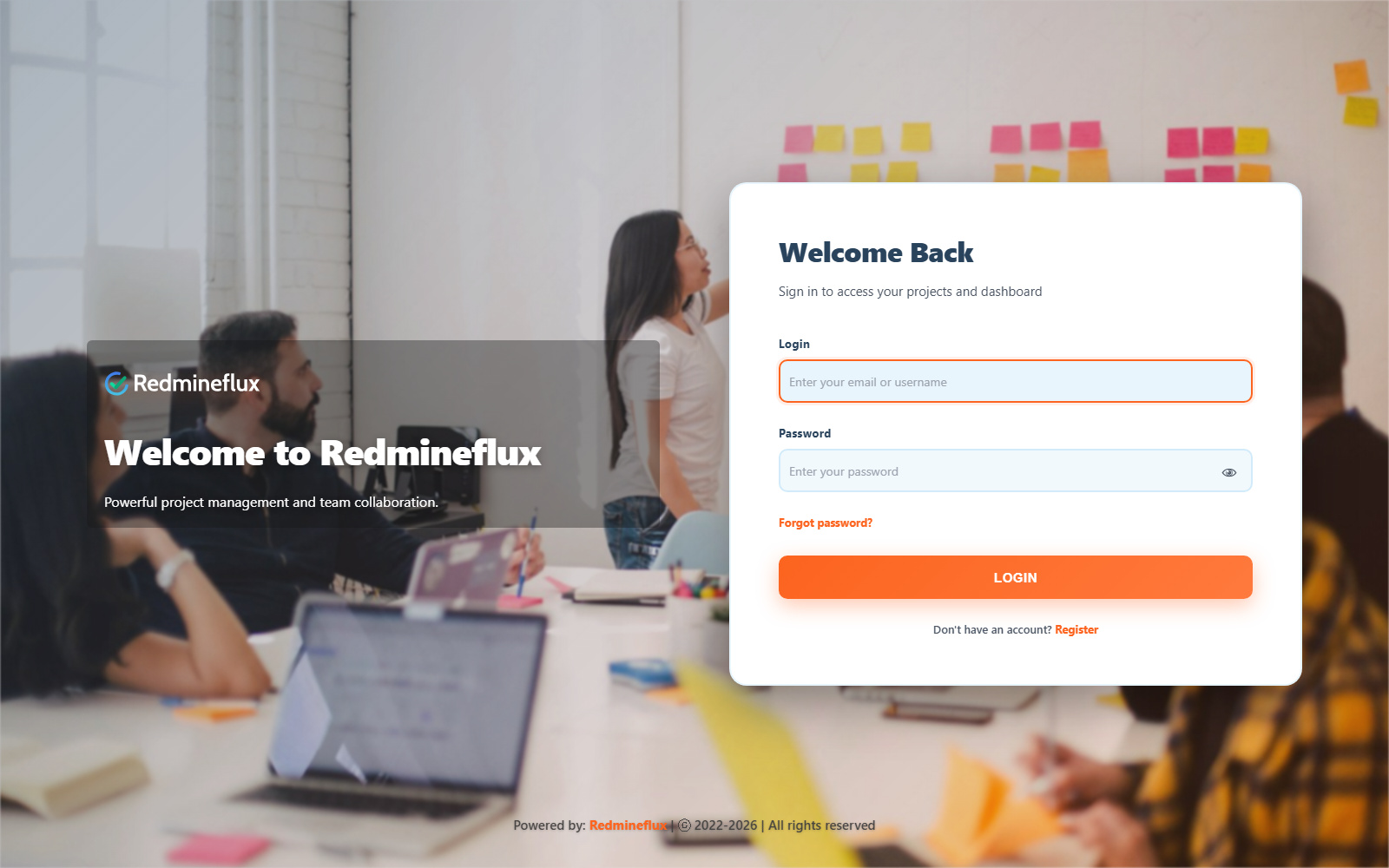
- Custom login page: a Scarlet login and lost-password page with your own background image, login subtitle and lost-password subtitle.
- Styled Redmineflux plugins: Scarlet also styles Agile Board, Checklist, CRM, Crux, Custom Dashboard, Gantt Chart, Helpdesk, Invoice, Issue Template, Knowledge Base, Notification, Tags, Testcase Management, Timesheet, Time Tracker and Workload, so that they match the theme.
Compatibility
Compatible with Redmine 7.0.x, 6.1.x, 6.0.x, 5.1.x and 5.0.x. The plugin refuses to load on Redmine older than 5.0. Use the plugin version that matches your Redmine major version.
Installation notes
Follow the steps below for installation:
- Make sure you have a working installation of Redmine (7.0.x, 6.1.x, 6.0.x, 5.1.x or 5.0.x). Use the plugin version that matches your Redmine major version. The plugin needs the Ruby version that your Redmine version requires.
- The Redmine process must be able to write to the themes folder (
themes/on Redmine 6 and later,public/themes/on Redmine 5) and topublic/plugin_assets/redmineflux_scarlet/. - Unzip the plugin and copy it to
redmine_root/plugins. You can also copy the archive to the same location and run the unzip command in the console. The folder name must beredmineflux_scarlet. Do not rename it. Redmine does not load the plugin if the name is different. - The plugin has no Gemfile and no migrations, so you do not have to run
bundle installor the migrate command for it. - On Redmine 6 and later, precompile the assets from the Redmine root directory:
RAILS_ENV=production bundle exec rake assets:precompile - Restart Redmine.
On the first start, the plugin creates the companion theme in themes/redmineflux_scarlet/ (Redmine 6 and later) or in public/themes/redmineflux_scarlet/ (Redmine 5). If this fails, for example because the folder is not writable, run RAILS_ENV=production bundle exec rake redmineflux_scarlet:install_theme.
After the installation:
- Log in as an administrator.
- Go to Administration > Settings > Display. In the Theme list, select Redmineflux scarlet and click Save. The look applies to all users at once.
- The Scarlet styles, tracker colours, priority icons, logo and the custom login page load only while this theme is selected.
- Optional: go to Administration > Plugins > Redmineflux Scarlet Theme Plugin > Configure. The page has four tabs:
- Tracker Border Colors: a colour for each tracker.
- Priority Icons: an icon for each priority. Upload SVG, PNG, JPG or GIF (16x16 to 64x64 pixels, up to 100 KB) or use the icon picker.
- Login Page: a background image (JPG, PNG, WebP or GIF, at least 1920x1080 pixels, up to 5 MB), a login subtitle and a lost-password subtitle.
- Logo: the logo at the top left of the top menu. Upload SVG, PNG or JPG, up to 100 KB.
- The plugin adds no project module and no permissions. Only administrators can change its settings.
Good to know:
- If the Configure page does not open while another Redmineflux theme (Daisy or Lotus) is active, select Scarlet or the Default theme first.
- The default login background loads from
images.unsplash.comin the browser until you upload your own image. - The Scarlet layouts of the project Overview page and the Spent time Report page are used while the Default theme (no theme) is selected, and they take precedence over the versions of other plugins. With any other theme selected, they are not used. Everything else loads only while Scarlet is the selected theme.
- To uninstall, select another theme under Administration > Settings > Display, run
RAILS_ENV=production bundle exec rake redmineflux_scarlet:uninstall_themewhile the plugin is still installed, remove theredmineflux_scarletfolder and restart Redmine. The uploaded icons and logos stay inpublic/plugin_assets/redmineflux_scarlet/, so delete that folder if you no longer need them.
Explore All Premium Redmineflux Plugins
- Redmineflux Testcase Management Plugin
- Redmineflux Helpdesk Plugin
- Redmineflux CRM Plugin
- Redmineflux Crux Chat
- Redmineflux Crux Agents
- Redmineflux AI MCP Server
- Redmineflux Gantt Chart
- Redmineflux Agile Board
- Redmineflux Custom Dashboard
- Redmineflux Checklist
- Redmineflux Knowledge Base
- Redmineflux Timesheet
- Redmineflux Time Tracker
- Redmineflux Workload
- Redmineflux Invoice
- Redmineflux Issue Template
- Redmineflux Notification
- Redmineflux Fluxshot Chrome Extension
Explore All FREE Redmineflux Plugins
Explore All Premium Redmineflux Themes
Changelog
7.0.0 (2026-11-26)
Compatible with Redmine 7.1.x, 7.0.x, 6.1.x, 6.0.x, 5.1.x, 5.0.x.
- A navy and orange theme for Redmine, installed as a plugin with a companion theme.
- Redesigned Overview, Roadmap, Activity, My page and administration pages.
- Copy Table for the issue list and the Spent time list, and copy tools for the Roadmap and the version page.
- Tracker colours, priority icons, a custom logo and a custom login page.
- Matching styles for the Redmineflux plugins.